
Most documents benefit from a quick spelling check before they are shared, submitted, or published. A few small errors can distract readers, weaken your message, and create unnecessary back-and-forth during reviews. Google Docs makes proofreading easier because its spelling tools work while you write and can also scan the entire document when you are ready for a final pass.
If you are learning how to check spelling on Google Docs, the process is straightforward on both desktop and mobile. The most useful approach combines automatic suggestions with a deliberate review of names, technical terms, and sentences that may need context rather than a simple correction. This article explains how to use the available tools, manage your personal dictionary, solve common issues, and make your documents look polished before sending them.
How Google Docs Identifies Spelling Errors
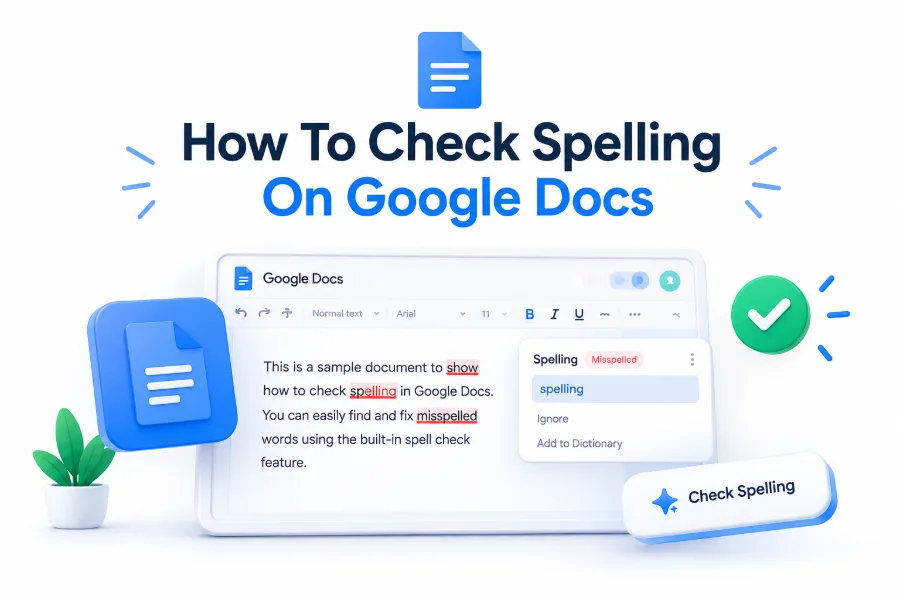
Google Docs checks spelling automatically as you type in most documents. Words it believes are misspelled appear with a red underline, making potential mistakes easy to spot without interrupting your writing flow. This live feedback is especially helpful when drafting emails, reports, assignments, and collaborative documents.
The tool compares your text against the language selected for the document. It can recognize many common spelling mistakes, repeated letters, and accidental word combinations. However, it cannot always determine whether a correctly spelled word fits your intended meaning, so a final read remains important.
How to Run a Full Spelling Check on Desktop
To review an entire file, open the document and select Tools from the top menu. Choose Spelling and grammar, then select Spelling and grammar check. Google Docs will move through each possible issue and show suggested replacements in a panel or pop-up window.
You can accept a suggestion, ignore it once, or add a valid word to your personal dictionary. If the suggested correction is not appropriate, simply skip it and continue. This full-document scan is useful after writing because it catches issues you may have overlooked during drafting.
Spelling Check Actions to Use During Review
- Accept a correction when Google Docs suggests the word you intended.
- Ignore a suggestion once when the word is correct only in that context.
- Add brand names, names, and specialist terms to your personal dictionary.
- Review each correction in the surrounding sentence before applying it.
- Use the document language that matches the audience and writing style.
Using Right-Click Suggestions While Writing
You do not need to start a full scan every time you notice a red underline. Right-click the underlined word to see a list of suggested spellings. Select the correct option, and Google Docs immediately replaces the original word in your document.
This method is ideal for quick corrections when you are focused on a single paragraph. It also helps you decide whether the word is truly incorrect. For example, a product name or regional phrase may be accurate even if Google Docs does not recognize it.
Checking Spelling With Keyboard Shortcuts
Keyboard shortcuts can make proofreading faster when you prefer not to open menus. On Windows and ChromeOS, press Ctrl + Alt + X to open the spelling and grammar check. On Mac, use Command + Option + X to begin the review.
Shortcuts are especially convenient for writers who work with long documents regularly. Once the checker opens, review each item carefully rather than accepting every recommendation automatically. A fast correction is useful only when it protects the intended meaning of your sentence.
Quick Proofreading Checklist
- Run the spelling and grammar check after completing your first draft.
- Read headings, captions, and table text separately.
- Check names, locations, acronyms, and product terminology manually.
- Confirm that accepted suggestions fit the sentence context.
- Review the document once more in a distraction-free view before sharing.
Managing the Google Docs Personal Dictionary
A personal dictionary prevents familiar, valid words from being flagged repeatedly. This is useful for company names, industry vocabulary, client names, and regional spellings. When a word is marked as incorrect, right-click it and select Add to dictionary if you want Google Docs to remember it.
You can also manage saved words through Tools, Spelling and grammar, and Personal dictionary. From there, remove terms that were added by mistake or no longer apply. Keeping this list tidy makes future spelling checks more reliable and reduces distracting false alerts.
Changing the Document Language for Better Results
Spelling suggestions depend heavily on the language assigned to your document. If you write for a US audience, choose English (United States). For UK, Canadian, or Australian readers, select the relevant English version so common regional spelling choices are treated correctly.
To change the language, open File, select Language, and choose the appropriate option. This setting affects the spelling checker throughout the document. It can prevent corrections such as changing “colour” to “color” when your publication follows British English conventions.
US and UK Spelling Examples
| US English | UK English |
| — | — |
| color | colour |
| organize | organise |
| center | centre |
| traveling | travelling |
| favorite | favourite |
Using Spelling Check in the Google Docs Mobile App
The Google Docs app offers spelling support for Android and iPhone users, although the exact controls can vary by device and keyboard settings. Misspelled words commonly appear underlined while you type, and tapping a highlighted word usually displays replacement suggestions.
For a fuller review, open the document menu and look for spelling or proofreading options if available. Mobile proofreading works well for short updates and comments, but longer documents are often easier to review on a larger screen where surrounding context is more visible.
Working With Grammar Suggestions
Google Docs can also flag grammar and style concerns alongside spelling mistakes. These suggestions may identify missing punctuation, repeated words, inconsistent capitalization, or phrasing that appears incomplete. They are useful prompts, but they should not replace your own editorial judgment.
A grammar recommendation can occasionally change the tone or meaning of a sentence. Review the full sentence before accepting it, particularly in professional, academic, or technical writing. If you need more editing advice, see [Internal Link: proofreading tips for professional documents] for a practical final-review process.
Common Spelling Check Problems and Fixes
If red underlines do not appear, first confirm that spelling suggestions are enabled. Go to Tools, select Spelling and grammar, and make sure Show spelling suggestions is checked. Also verify that your browser, Google Docs app, or device keyboard is up to date.
Another common issue occurs when the wrong language is selected. A document set to a different language may flag correct words or fail to identify obvious mistakes. Switching to the proper language usually restores relevant suggestions and improves the accuracy of the checker.
Important Facts About Google Docs Suggestions
- A red underline indicates a possible error, not a guaranteed mistake.
- Added dictionary words apply to your Google account, not just one document.
- Spelling tools work best when the document language is accurate.
- Correctly spelled words can still be used incorrectly in a sentence.
- Collaborative edits may introduce new errors after your first review.
Reviewing Shared Documents With Care
Shared documents require an extra proofreading step because multiple contributors may add content at different times. Before publishing or submitting the file, run the spelling check after all major edits are complete. This helps catch mistakes introduced during comments, revisions, or copied text.
Use Suggesting mode when reviewing another person’s work if you want them to approve changes first. This keeps corrections visible and preserves the original wording for discussion. It is a useful option for teams that need accuracy without changing content silently.
Checking Spelling in Comments and Suggestions
Comments deserve attention because they are often sent directly to clients, coworkers, or editors. Google Docs may offer spelling support while you type comments, but it is still wise to reread them before posting. Short messages can create confusion when they contain rushed errors.
Suggested edits should also be reviewed for spelling, especially when you paste revised passages from another source. Copying content can introduce unusual formatting, unfamiliar words, or hidden mistakes. A quick scan keeps your feedback clear and professional throughout the editing process.
Best Times to Check a Google Docs File
Run a spelling check after the first draft, after significant revisions, and immediately before sharing the final version. Each stage catches a different kind of error. Early checks help you write cleanly, while final checks protect the quality of the completed document.
For high-stakes work, allow time between writing and proofreading. Returning with fresh eyes makes spelling errors easier to notice, including words that were technically correct but wrong for the sentence. You can also use [Internal Link: business writing checklist] to review formatting and tone.
A Practical Final Review Routine
Start by running the built-in spelling and grammar check. Then read the document slowly from beginning to end, paying closer attention to headings, names, numbers, links, and closing sections. These areas are often edited late and may escape an earlier review.
Next, read the document aloud or use a text-to-speech tool if available. Hearing the wording can reveal awkward sentences and missing words that visual scanning misses. Finish by checking the document after any final formatting changes, particularly if text was moved or copied.
Conclusion
A polished document is rarely the result of one automated scan alone. Google Docs provides helpful real-time alerts, full-document reviews, language settings, and personal dictionary controls that reduce routine mistakes. Used thoughtfully, these features save time while still leaving you in control of tone, terminology, and meaning.
The strongest proofreading habit is to combine the tool with a calm, deliberate final read. Check important names and numbers manually, confirm that accepted suggestions match the context, and review shared edits before the document leaves your hands. Once you build this routine, how to check spelling on Google Docs becomes a quick and dependable part of creating work that readers can trust.
FAQ
How to start spelling check in Google Docs?
Open the Tools menu, select Spelling and grammar, then choose Spelling and grammar check. Google Docs will review possible issues one at a time and provide options to change, ignore, or add each word to your dictionary.
Why Google Docs marks a correct word as wrong?
The document may use the wrong language setting, or the word may not be included in Google Docs’ dictionary. Check File and Language first. If the word is valid, add it to your personal dictionary.
How to remove a word from the personal dictionary?
Go to Tools, select Spelling and grammar, then open Personal dictionary. Find the saved word and remove it from the list. Google Docs can then flag that word again when it appears in future documents.
Does Google Docs check grammar as well as spelling?
Yes. Google Docs can show grammar and writing suggestions alongside spelling alerts. These recommendations help identify common issues, but you should review them carefully because automated tools may not always interpret your intended tone or context correctly.
Can Google Docs spell check work without internet access?
Offline editing can support some document work if offline access was enabled beforehand, but available proofreading features may vary. For the most reliable spelling suggestions, use Google Docs while connected to the internet and with the latest browser or app version.
0 Comments